Device management for event tablets
Event tablets, ready in one scan.
Nemeo sets up a factory-reset tablet with a single QR scan, then keeps it locked to its job for the whole event.
Talk to us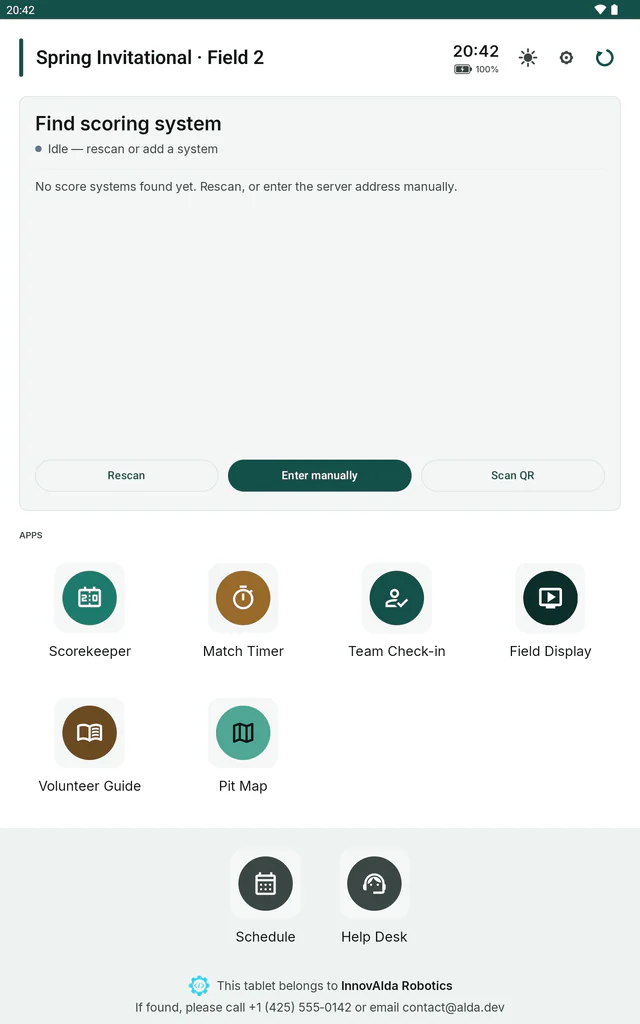
From box to venue
Four steps take a tablet from a factory reset to its job on the venue floor.
-
Provision
Scan one QR code on a factory-reset tablet and it sets itself up: it installs Nemeo, joins your organization and downloads its apps.
The venue’s WiFi can ride in the same code: an open network, or one with a WPA, WPA2 or WEP password.
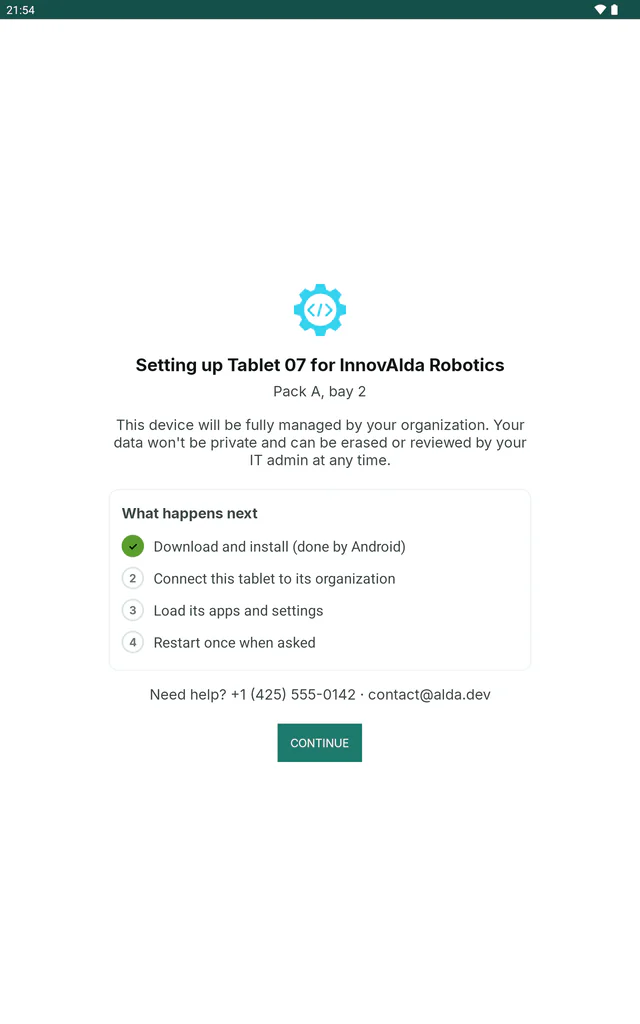
On Android 12 and later, the setup screens show your organization’s name and the tablet’s own name, plus a setup label such as “Pack A, bay 3”, your logo and your support contacts when you have set them.
-
Assign
Each tablet gets a configuration for its role: the apps it runs and how it is locked down. Scoring tablets get the scoring app; the check-in desk gets check-in.
When a tablet fails mid-event, a spare takes its place with one bulk change. A tablet that is online picks up its new role within seconds, instead of waiting for its next check-in.
-
Lock down
Kiosk mode pins a tablet to a single app or a single website. You choose, one by one, which system controls stay available, such as the home button, notifications or the power menu.
A website kiosk stays on its own site: links to anywhere else do not open.
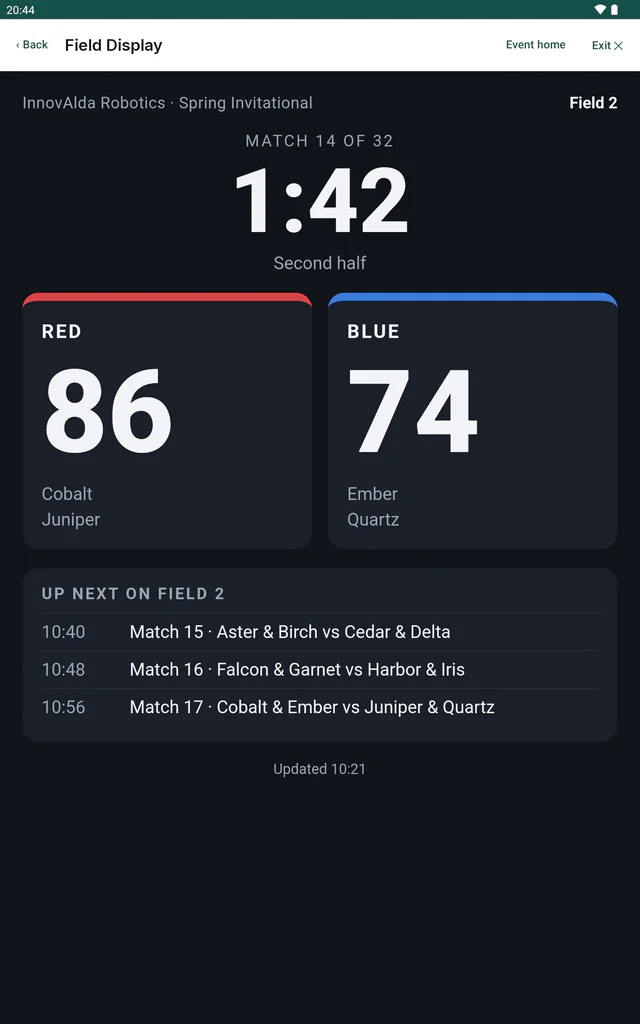
Mockup of a robotics scoring system -
Stay in touch
Once the tablets are out on the floor, you can still reach them.
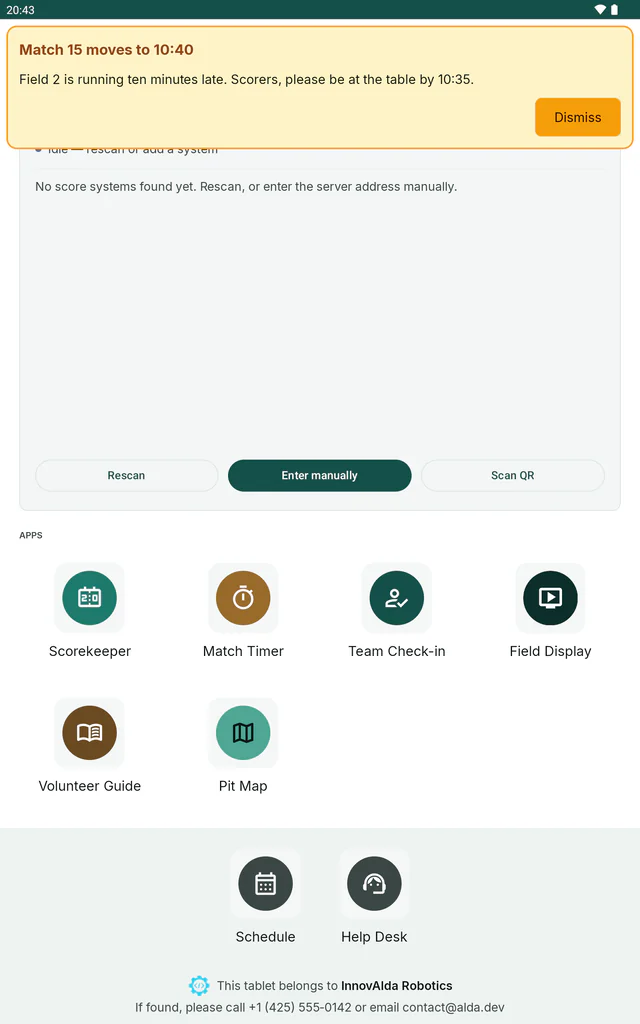
- Notices from the server appear on the tablets’ screens, such as “Day is over: please bring tablets back to the help desk.”
- A status history of each tablet (battery, connectivity, location when permitted, and the app in front when enabled), kept per organization for 21 days by default, and switched off for an organization by InnovAlda on request.
- The Nemeo app on each tablet updates itself from a release channel.


Built for the venue floor
-
Signed requests
After pairing, each tablet signs the requests that fetch its settings and report back, with a key that belongs to it alone.
-
Backup addresses
When a venue network blocks the main server address, tablets try your organization’s backup addresses in turn.
-
Notices that get seen
A notice only counts as seen once someone is actually at the screen. While the tablet is asleep or locked, it waits.
-
Managed screen timeout
Screen timeout is set centrally. New organizations start at 5 minutes, long enough to read a notice.
-
Readiness check
Each tablet checks that it is ready for its job, lists anything missing, such as a permission, and opens that list by itself when something important is wrong.
-
Two-tier admin PIN
Admin controls on the tablet can sit behind two tiers: a short PIN for everyday fixes like a reboot, and a stronger password for anything drastic, like a factory reset.

Works with Lumieos
Lumieos assigns roles and event details, and Nemeo gets the tablets there. Nemeo has a fleet connection built for Lumieos: it moves tablets onto the configuration for their role, swaps spares in with one all-or-nothing change, and issues the QR code that sets up a new tablet.
When a tablet’s configuration has a Lumieos event link set, an “Open Lumieos” button appears right on its home screen.

Tell us about your fleet
How many tablets you run, what they do on the day, and how often they travel. We reply by email.
Write to us at contact@alda.dev.